With Cookie & GDPR Manager, you can easily create and customize Terms and Conditions for your website or app. In this guide, we’ll walk you through the process step by step.
Configure your Terms and Conditions
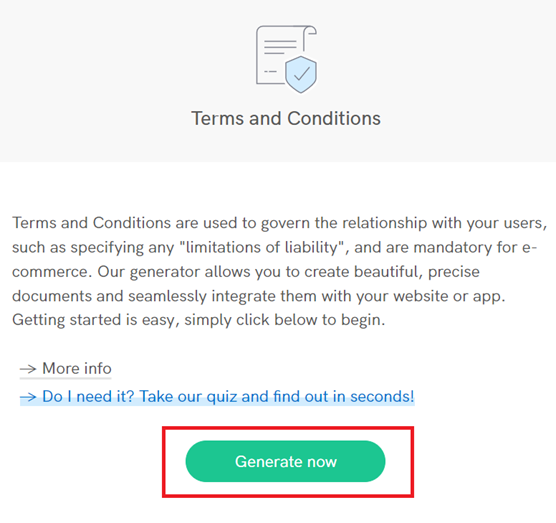
Click Generate now under Terms and Conditions in the Cookie & GDPR Manager control panel.
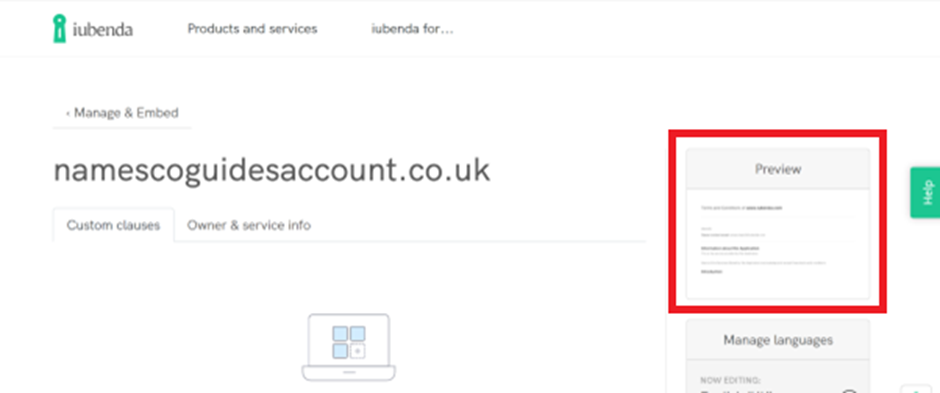
You’ll now be taken to the editor, where your Terms and Conditions are created and where you can add and customize clauses.
A basic version is automatically generated, which you can preview by clicking Preview in the right-hand menu.
Note: Since Terms and Conditions are legally binding, it’s important that they accurately reflect your business. We’ll show you how to customize them in the next step.
Customize your Terms and Conditions
As mentioned above, your Terms and Conditions need to be tailored to your specific needs. You do this by editing and adding clauses.
Start by clicking Add clauses.
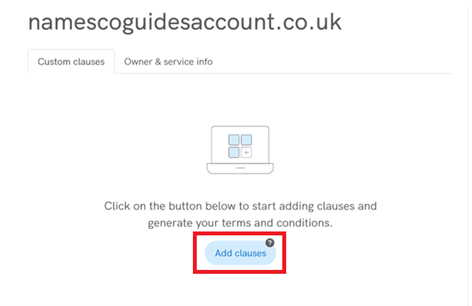
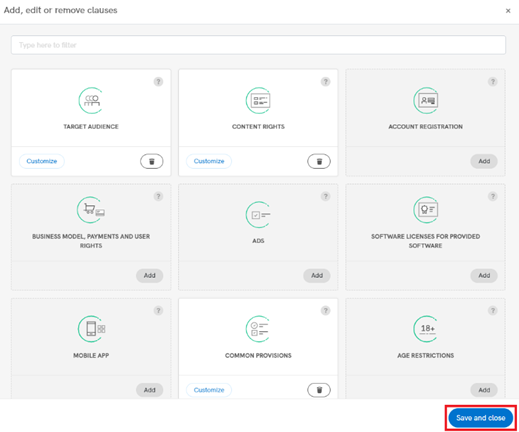
A window will open where you can select and edit the clauses you want to include. If this is your first time, you’ll see a default setup.
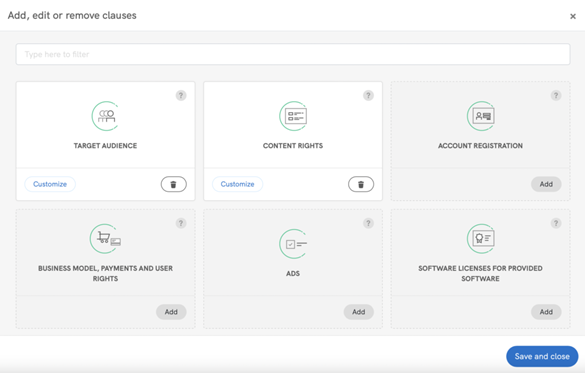
As shown, the most essential clauses are preselected as part of a basic configuration. You can remove or add clauses as needed. The clauses are organized into intuitive modules, with clickable guides that help you through the entire setup process.
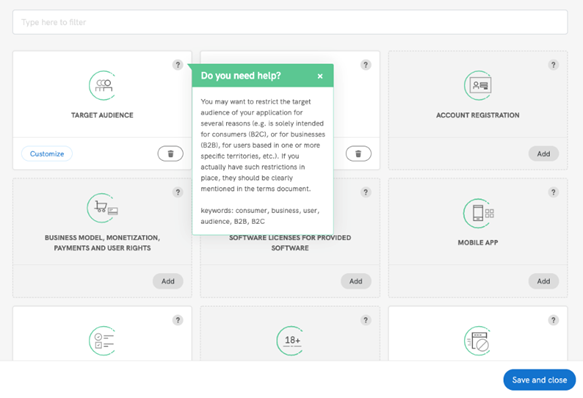
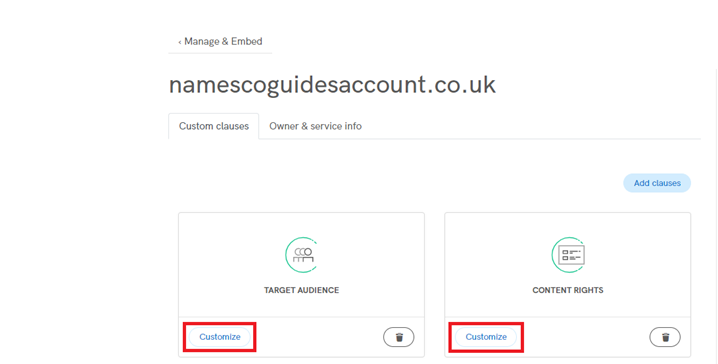
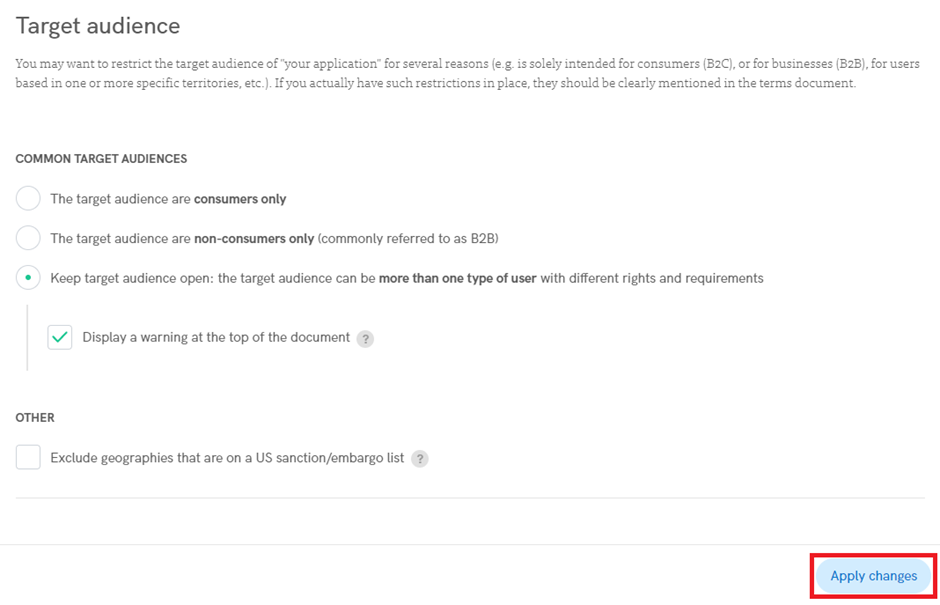
To edit a specific clause, click Customize. This will open the clause so you can make the necessary changes to fit your business.
As mentioned above, the on-click guides are available throughout to make sure that you choose the options that best fit your individual needs.
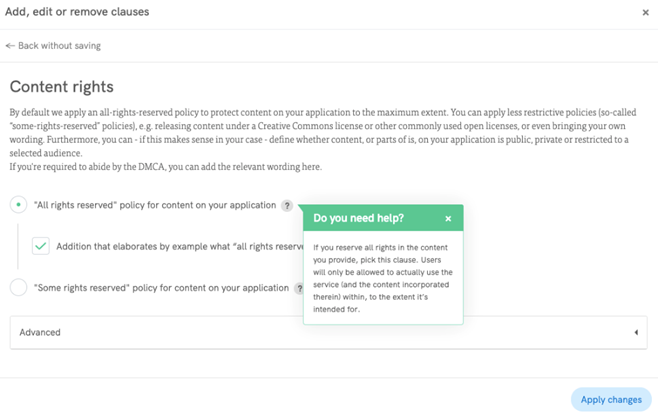
Click Apply changes in the bottom right corner to save your edits.
You’ll then return to the main clauses window. When you’re done customizing your Terms and Conditions, click Save and close in the bottom right corner to proceed.
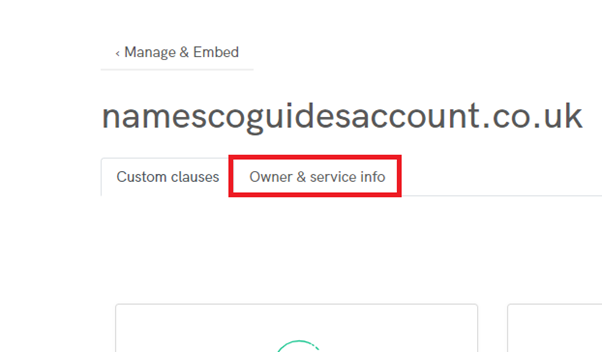
Owner and service information
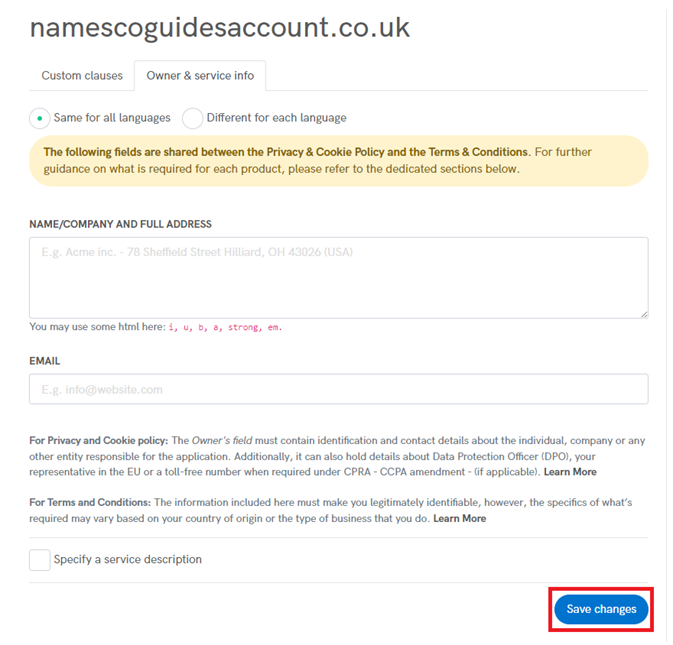
Once you’ve finished editing, you need to enter your company details in the owner section. To do this, click Owner & service info.
Here, you need to provide your legally valid company and/or contact details.
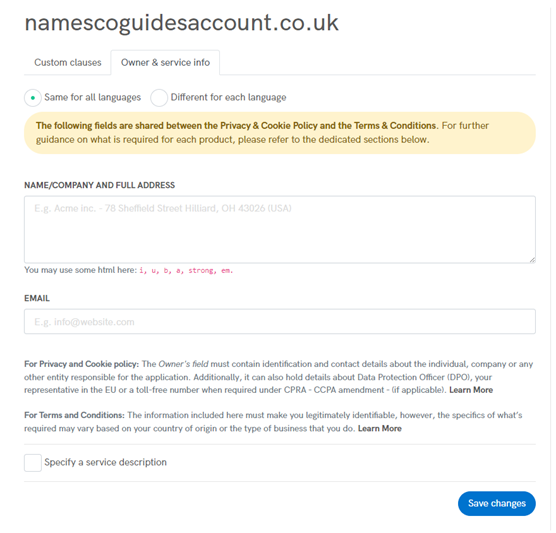
The required information may vary depending on where your business is established and your target audience. Typically, you’ll need to provide:
- The identity of the owner/company
- Contact details
- Any relevant codes of conduct related to your business model
Since Terms and Conditions are legally binding agreements, it’s important to provide accurate and valid information. Also note that, under consumer protection laws, customers often need to be able to contact you if necessary. Read more on what is required in this guide.
Once you’ve entered the required information, click Save changes in the bottom right corner. Your Terms and Conditions will now be generated.
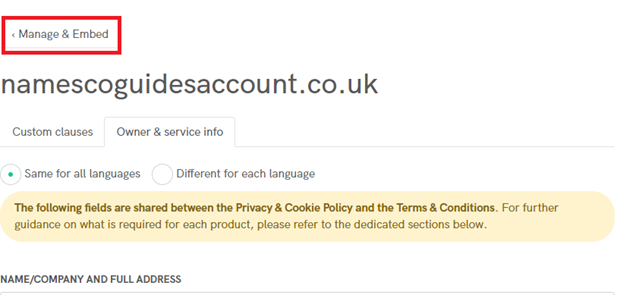
You can also access this section at any time during the process by clicking Manage and embed in the top left corner.
Add the Terms and Conditions to your website
If you need help embedding your Terms and Conditions, we recommend the following guides:

