
Sometimes you need to copy a database, whether to test, upgrade a database server, or clone an application for further development.
Normally this process would mean backing up the database via phpMyAdmin, creating a new database, and uploading the data. We’ve made it easier with a simple tool that lets you copy a database quickly without extra steps.
Create a copy of a database
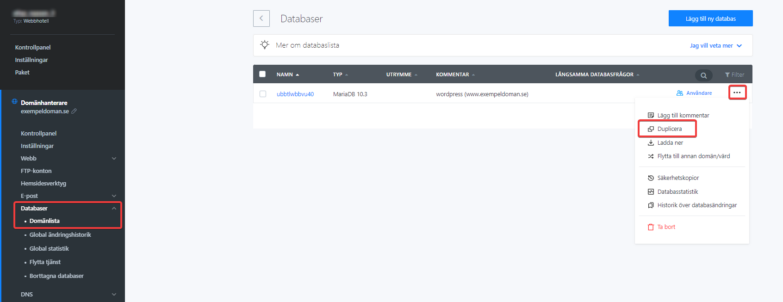
1. Log in to Webadmin. In the Services section, click Databases next to your domain. The Database option appears in the left menu. In the database list, click Duplicate next to the database after clicking the three dots.
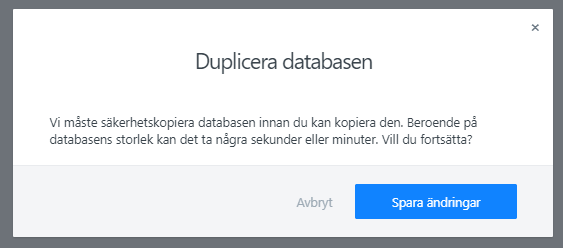
2. When you click Create a copy of the database, you may see a message about backing up your database.
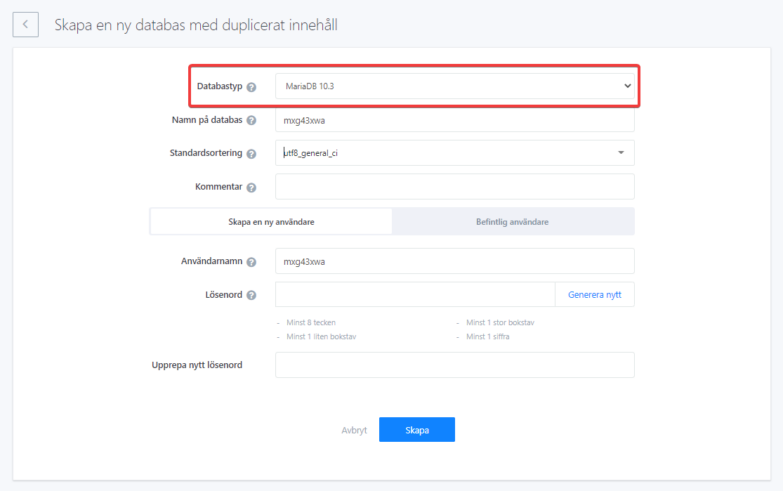
3. If you want to try a higher version of the database server, select it on the first line. You can also change the default character set.
4. Choose a name (note that the new database name must be unique) and a password for the new database.
After confirmation, the database copy is created and ready in a few minutes. Remember to update your database access credentials and configure your application to use the newly created database as part of your application setup.

