
Import databases larger than 96 MB
Windows
You need a MySQL client to create a connection to the database server and perform the import. For simple tasks, the free HeidiSQL program is sufficient; the current version is available here.
After installation, you can create a connection to the database server.
- You’ll find all the necessary information in Webadmin in the “Databases” section for your site.
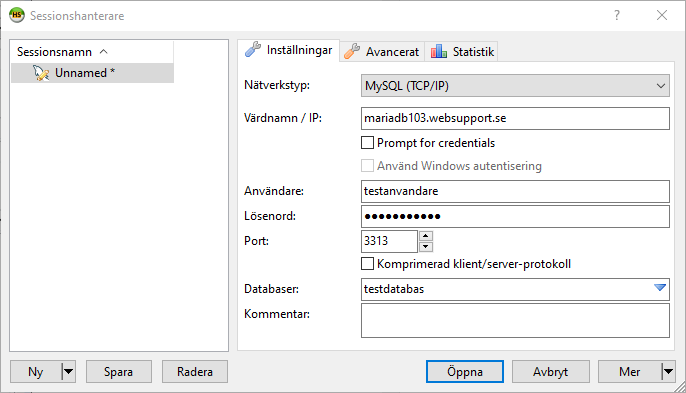
- In our example, we connect to a database named testdatabas with the user testanvandare, which is MariaDB version 10.3 (and uses port 3313).
- After HeidiSQL starts, click New → Session in the root folder, enter the database connection details, and select Open:
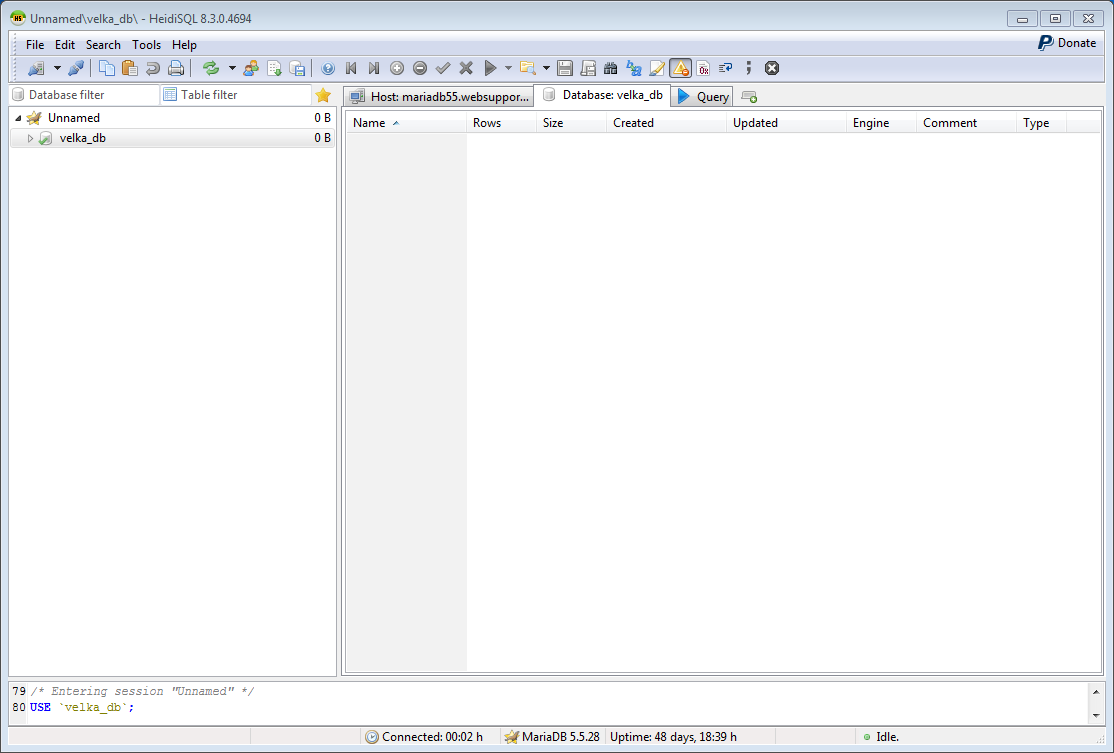
In the open window, you can see the database and its tables, if any exist:
- Go to File → Load SQL file or press Ctrl + O and select the SQL file you want to import.
- In the window that appears after selecting the file, click Run file(s) directly and watch the import to our servers begin:
Debian/Ubuntu Linux
On Linux, you can run HeidiSQL in a Wine environment by following the steps above. However, it’s more efficient to use the MySQL console directly, which you install by running this command in the terminal:
sudo apt-get install mysql-client-5.5
The import syntax is as follows:
mysql -h adress.db.server -P port -p -u db_userdb_name
In our example, we would use this command:
mysql -h mariadb103.websupport.se -P 3313 -p -u databasanvandare < databas.sql
After you enter the database password, the import starts and any errors are printed to the console. When done, you can verify the database contents either through the console client or with phpMyAdmin.

