Instructions for beginners
A CNAME record (Canonical Name record) directs a subdomain to another domain. In practice, your subdomain is routed to the target domain’s IP address. The big advantage is that CNAME records work automatically when the IP address changes. Note: you can never use a CNAME record at your domain’s root (@).
Create/Edit a CNAME record
1. Log in to Control Panel »
2. Click your domain in your services list.
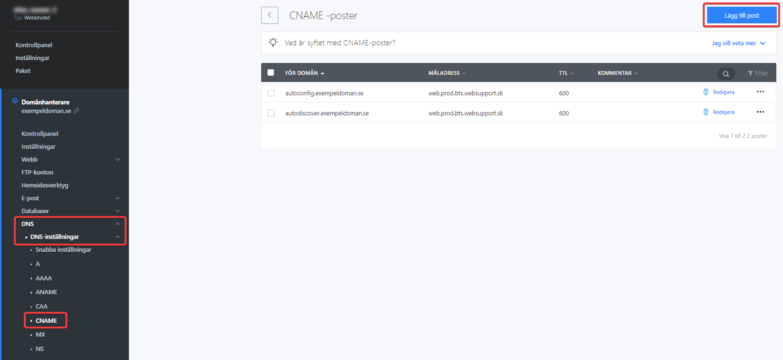
3. In the left menu, select DNS and then click CNAME.
4. To create a new record, click the blue Add record button
CNAME record editing form
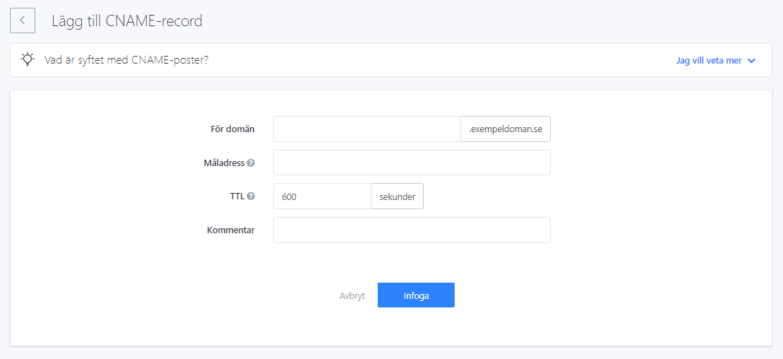
- Enter the subdomain you want to redirect with the CNAME record in the first field.
- Enter the redirect destination in the Value field
- The TTL value determines how long ISP servers remember the setting. Time is specified in seconds
- You can enter anything in the Comment field or leave it blank
- After you’ve filled in the form, click Save changes
Delete a CNAME record
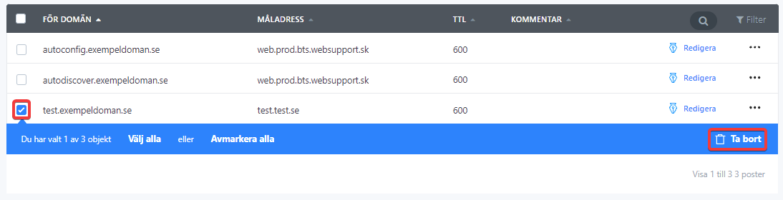
Click the checkbox in the table to select one or more CNAME records, then click Delete. If you accidentally delete a record, you can always restore it in the Change history section. Find the change in the list and click Restore. All your DNS settings return to their previous state.