Instructions for beginners
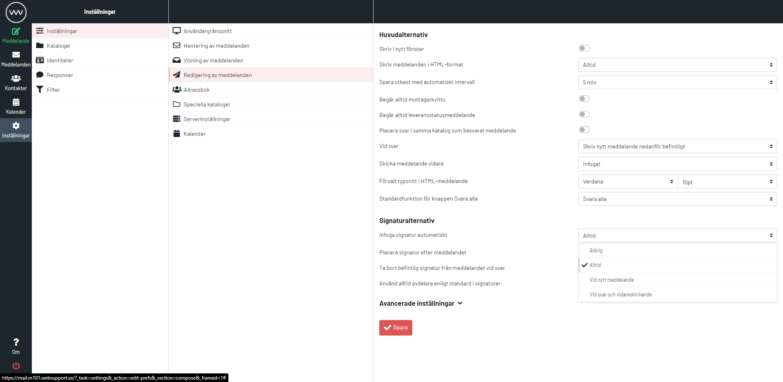
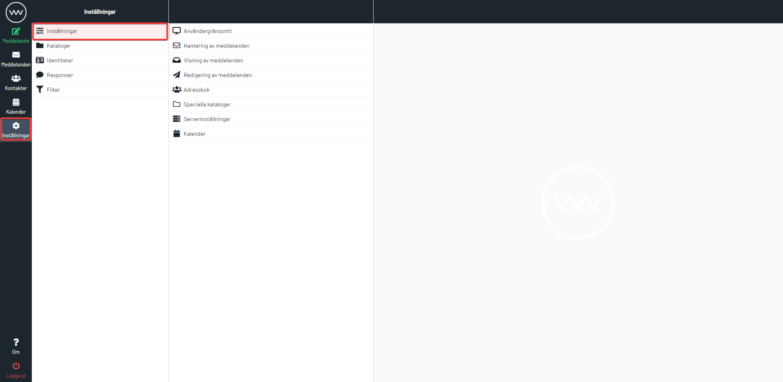
Log in to https://mail.websupport.se. Access Settings by clicking Settings on the far left. You’ll find sections for properties, folders, and profiles.
Settings lets you configure various options: interface preferences, mailbox, messages, folders, and more.
User Interface
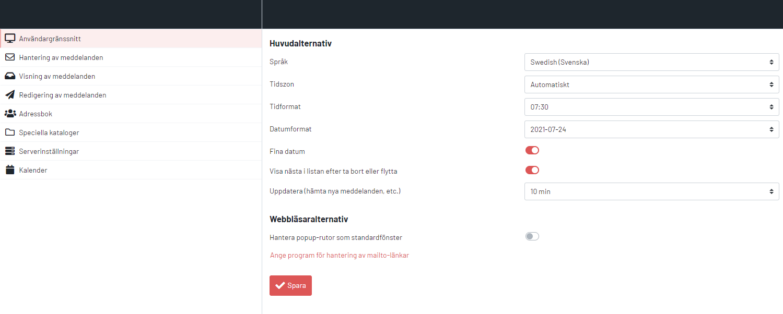
Set your language and time zone here. You can also configure date and time formats, and choose how often webmail checks for new messages.
Message Management
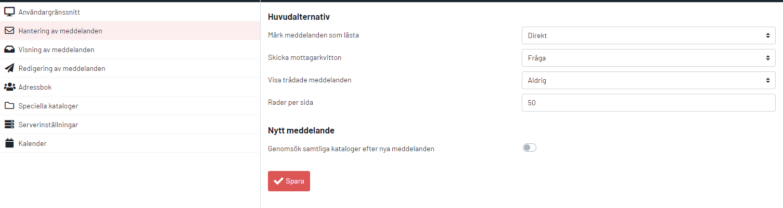
Configure message preview, message marking, read receipts, rows per page, and more.
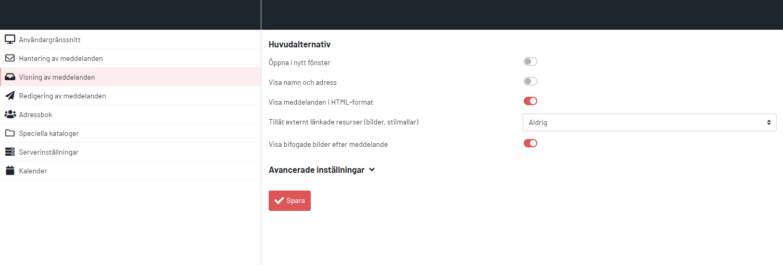
Message Display
Set the default encoding for your emails, display images attached to messages, or display images stored outside messages.
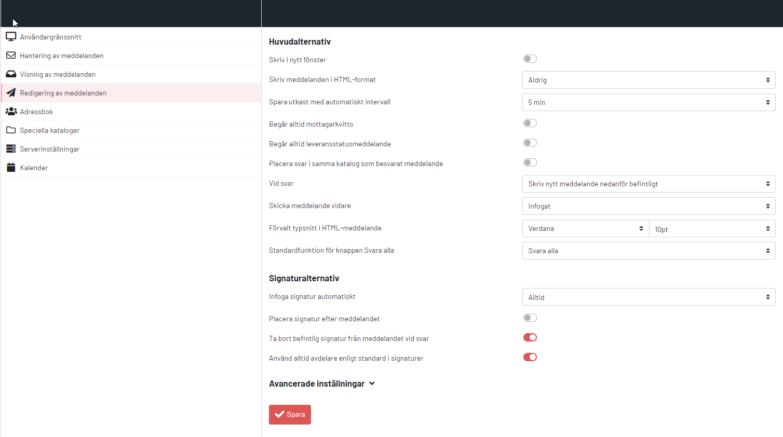
Message Editing
Configure defaults for composing new messages. For example, choose whether to use HTML by default or automatically insert signatures.
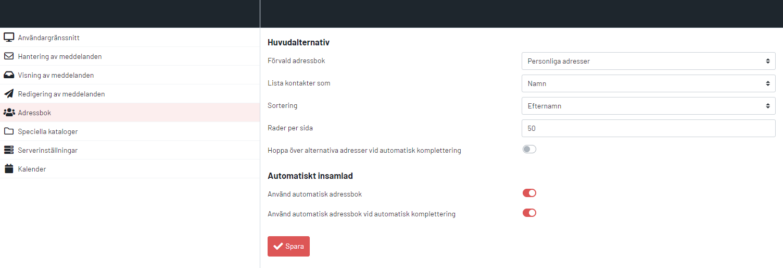
Address Book
Control how your contacts display (full name, last name first, first name last) and set the contact sorting format.
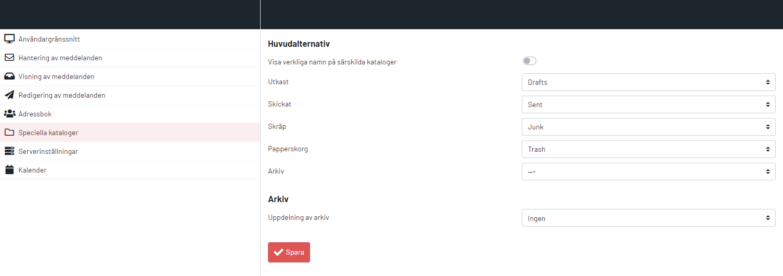
Special Folders
Modify the default folder structure (Drafts, Spam, Sent, and Trash).
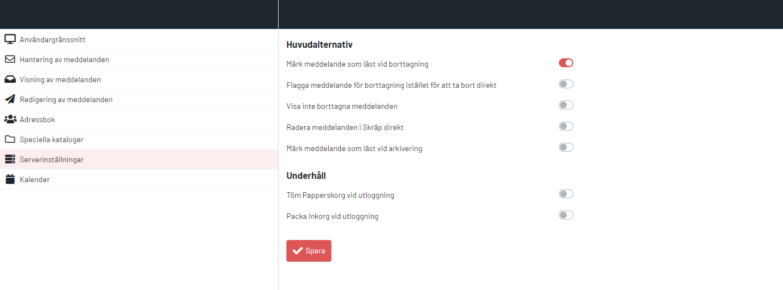
Server Settings
Key settings here let you prevent automatic deletion of messages, keep messages until moved to trash, and handle incoming spam messages.
You can also configure trash emptying when you log out.
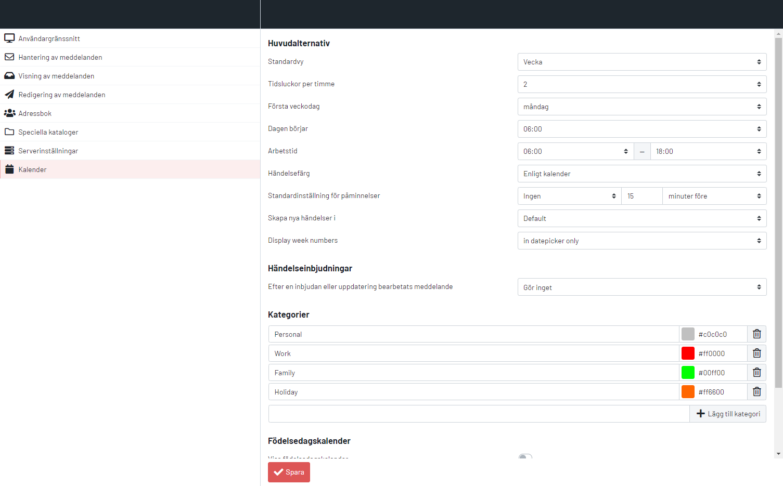
Calendar
Adjust your calendar settings, such as when the week starts and your working hours.
Folders
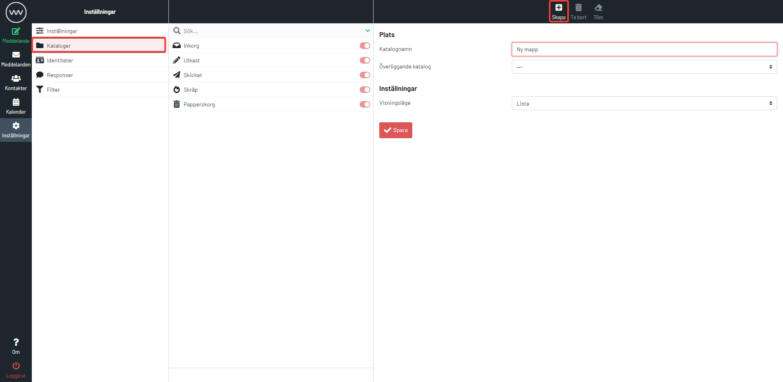
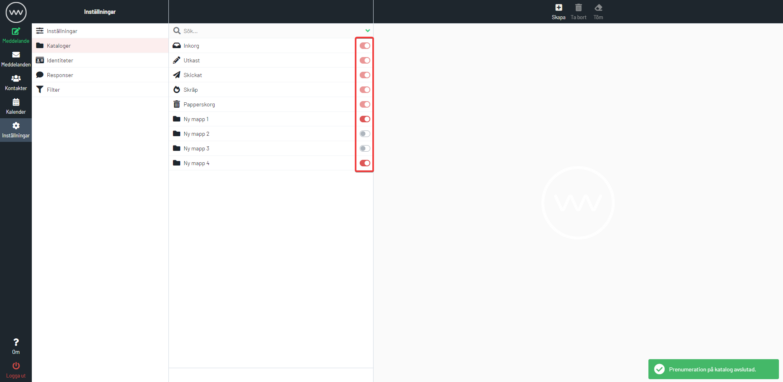
In Folders, create a new folder (A) or configure how existing folders display in your email interface (B):
A/
B/
Identities
Add your own signature in the Identities section.
To create a signature, log in to Webmail:
- Click Settings on the far left.
- Click Identities on the left side.
- Click your email address in the middle column. To create another signature, click “Create” in the top right.
- Create your signature here. You only need to fill in the Name field along with your signature to save. The rest are optional.
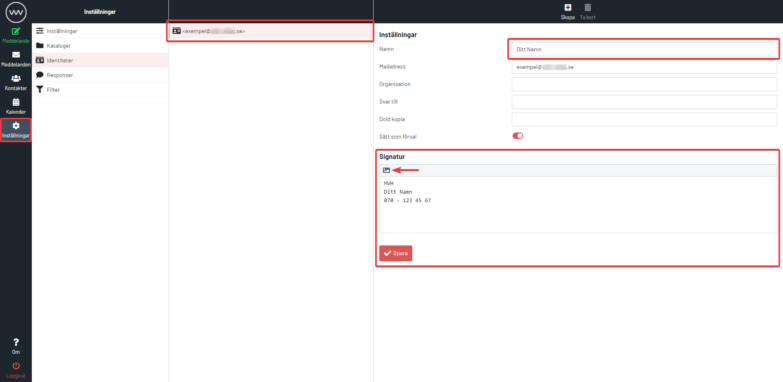
Next, go to the Signature field and enter your signature—it displays when you compose messages. You can also use the HTML signature editor (see the arrow in the image above) to apply basic HTML commands for better formatting. Your signature appears in all new messages and is used for all future emails.
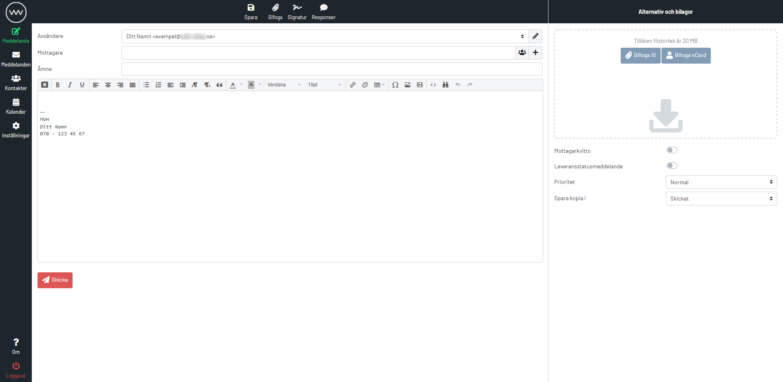
Configure email signature settings
You can disable your email signature anytime. Go to Settings > Message Editing. In the Signature Options section, choose when your signature appears as you compose and send. You can also turn signatures off entirely.