Instructions for beginners
In this guide, we show you how to change the sender address and how to add the ability to use SMTP sending to WordPress.
Tip: If you send a newsletter via WordPress or have an online store built on it, you can use our instructions for more advanced configuration.
Sender Address Settings
WordPress in its basic installation doesn’t offer many settings for sending email; it uses php mail() with its own wp_mail function.
It uses the address you specified during installation as the default sender address.
If you want to change the address, just go to the Settings – General menu.
The specified address must exist in our system, either as an email address for your hosting or based on what’s called a whitelist where we add it based on a request sent to our helpdesk.

This plugin uses this address, but many developers choose to bypass wp_mail with their own parameters, for example the user’s address. It’s always a good idea to test sending mail from WordPress to multiple email addresses before launching a live operation, since proper sending can also be affected by the plugins you use—some specify a different sender address, for example (e.g. the customer’s email).
SMTP Sending Settings
If email is not leaving WordPress, often the quickest solution is to try SMTP. It’s also a solution if you want to send email via Gmail or another email provider. SMTP support is not included in the basic installation, but there are a relatively large number of SMTP plugins.
Tip: Postman is for example a good choice for using OAuth2 from Google, and Mailer is an excellent choice for sending mass emails.
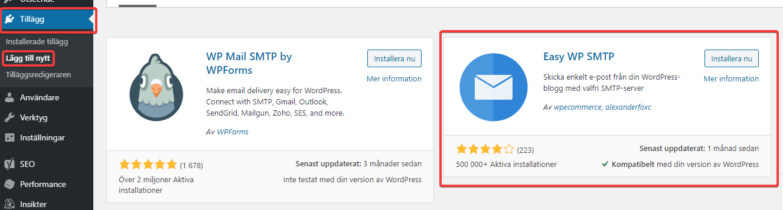
We use Easy WP SMTP in the manual, but the procedure and settings are roughly the same for all plugins of this type.
The plugin can be installed via the Plugins section in wp-admin. After installation, it’s necessary to activate the plugin, which WordPress offers us directly:
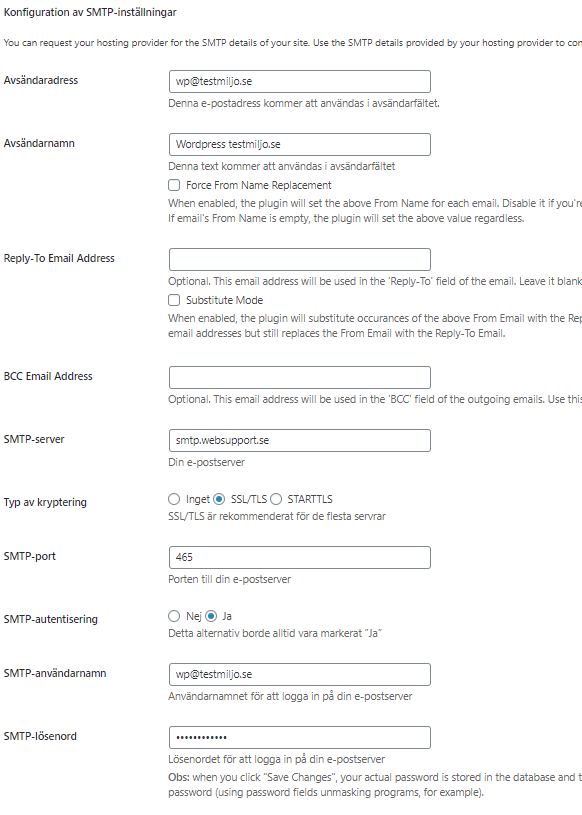
TIP: If you want to use our servers, you must use the following parameters for proper sending:
Outgoing server: smtp.websupport.se
Port: 465
SSL: On
Authentication: Required
To use another provider’s SMTP server, use the credentials you’ve received. We generally get the best results when we use port 465 and SSL encryption. The resulting settings should therefore look like this:
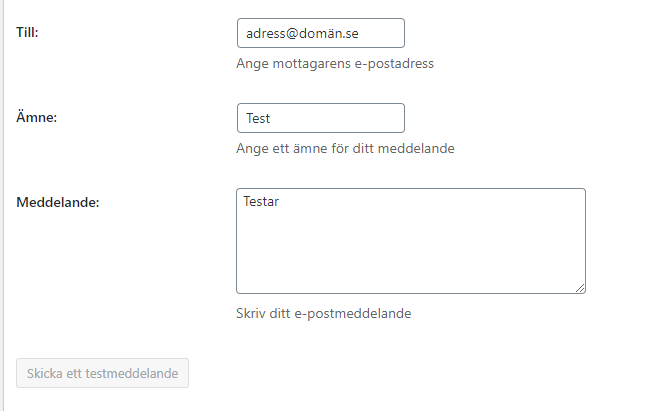
TIP: We recommend that you test sending email; at the bottom of the settings page you’ll also find the option to send a test message. It’s perfect to try sending to different recipient addresses or to multiple email servers (Gmail, Outlook, and so on).