Macaly is a website tool that builds exactly how you want the site to look using AI. Unlike, for example, WordPress, which relies on various themes and templates, the site you want is built entirely based on how you describe it in Macaly.
Each month you receive a pool of credits, which varies depending on the package you choose, that can be used to tell an AI chat how you want the page built or modified. How many credits are used depends entirely on how much data your request consumes and which AI model you use.
By default an AI model based in the EU is used, but there are also American models to choose from. Keep in mind that data is stored with these providers, which is worth considering if you are located in the EU.
There are three different packages to choose from: Free, Pro, and Hosting. In the free version you can test the basic features of the tool without paying. However, there are some limitations, for example you cannot connect your own domain. The free package includes 3 million credits.
In the Pro version everything is unlocked and you can connect your own domain name. This includes 10 million credits per month.
The Hosting package is recommended when you are done with what you built in the free or Pro package. This package includes no AI features and no AI credits. But you can still use your own domain name and manually update text and images whenever you want.
Getting started
After you have ordered your package, you can find the service by logging into your account with us at admin.websupport.se and then clicking “Services” in the upper‑left corner. Click on your Macaly package there and then “Go to application” in the upper‑right corner to get started.
The first thing you encounter is a text box where you can describe to the AI agent what type of website you want. Here you can write as much or as little as you like, but the more detailed you are, the easier it will be for the agent to build the site the way you want it.
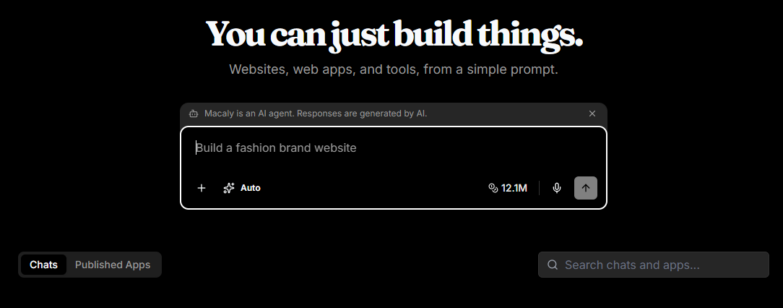
You can write anything from, for example, “Build a simple page for my company with some general information and contact details” to “Build an online store for me for my tire shop. I want to be able to sell about ten products and customers should be able to register accounts. I want the site to have a black background with white text. I want a subpage presenting our staff, a subpage with a contact form, and a subpage about our history” to even more detailed descriptions.
Keep in mind that the more features the website needs, the more credits will be used when the site is built. Demanding prompts can also take a little time. To avoid wasting resources, the agent may pause after a certain amount of time and a certain number of credits have been spent. If that happens, you can simply click a button to get the agent to start working again.
When the page is done
To get started, you can click “Publish” in the upper‑right corner so that what has been built can also be viewed online.
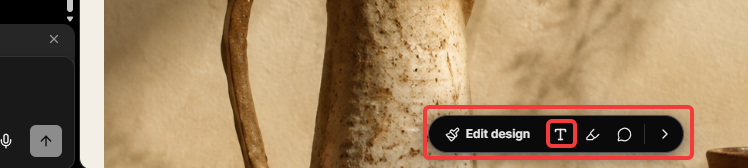
Once the site is built, you can go in and edit the text and images yourself. While working with the tool, you’ll see the AI functions on the left and the page that has been built on the right. In the lower‑right corner a small control panel is visible. Clicking the “T” symbol there lets you edit the text yourself. You can also click on images to replace them.
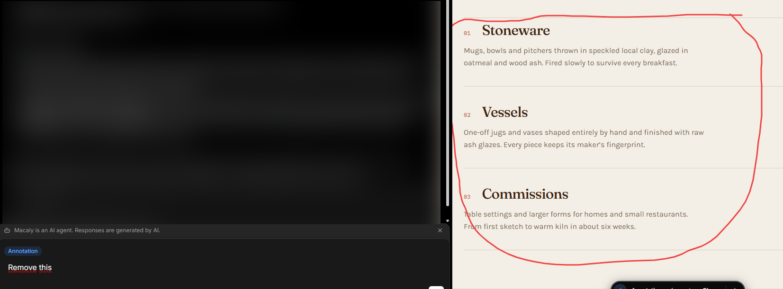
Clicking the pencil lets you select a paragraph on the page that you can then ask the AI agent to correct, modify, or explain.

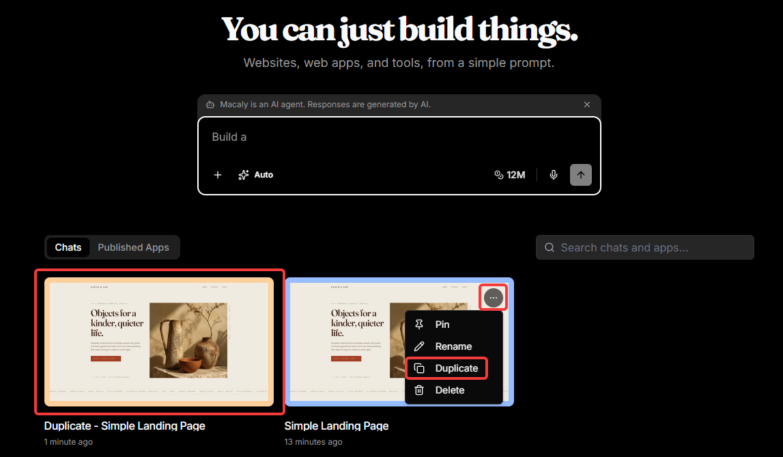
The next time you visit the admin interface, you will be met with the same text box as before. Entering something there creates a new project. To continue working on the same page, you will see your projects listed directly beneath the text box. Just click on the project you want to continue with.
From here you can also duplicate a project if you want to test something without risking that the page breaks in any way. Simply hover the mouse over the project and click the three‑dot menu that appears in the upper‑right corner.
Connect domain
To connect the desired domain name, click “Settings” in the top control panel. From there go to the “Domains” menu section, enter the desired domain, click “Show DNS records,” and follow the instructions.
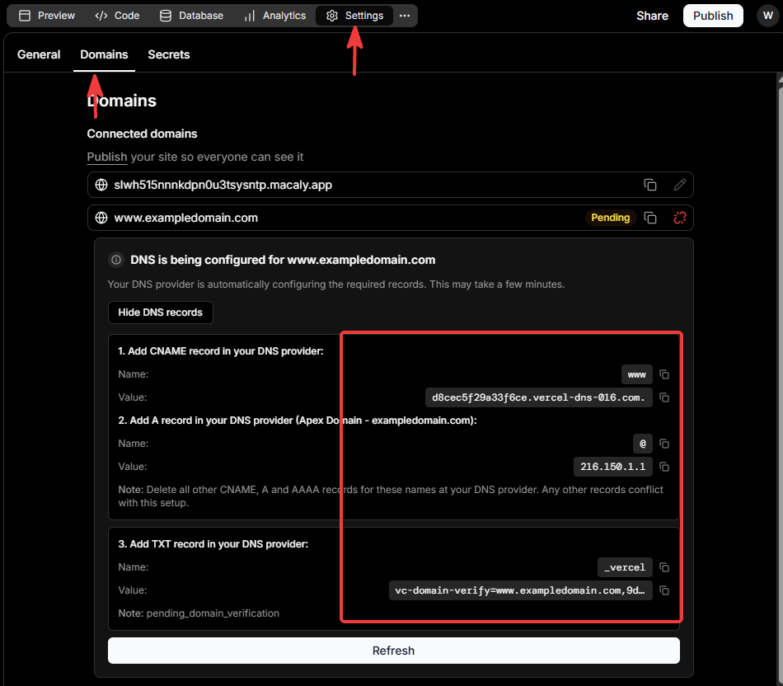
If you’re unsure and you own your domain name through us, feel free to contact our support team and we’ll help you connect it. If your domain name or DNS management is with an external provider, you can take a screenshot of the instructions, copy the text highlighted in red in the image above, and send that to your provider—they should be able to help you.
Not just websites
Macaly can be used for more than just building websites. The agent can also help you create web‑based systems, apps, and games. For example, you can ask the agent to create a time‑clock system for staff, a booking page, a countdown to your vacation, or why not try building a web‑based game?
Tips
If you notice the AI agent becoming slow after you’ve used it for a while, you can try typing /compact in the chat box. This will compress and summarize everything that has been written in the chat for the agent, making it faster for the agent to read through everything the next time you request something.
Keep in mind that credits will be used for the compression, but afterwards fewer credits should be needed for your next prompt.
Avoid using /compact too often, as it may omit details from your earlier conversation.
We also recommend checking Macaly’s own support page if you want to dive deeper into how the tool works and can be used. You can find it here: https://wl.macaly.com/docs/en/welcome/overview

