
Adding an account to new Outlook (also called “Outlook (new)” on Windows) works differently from before. Here’s how to add an account.
Step by Step
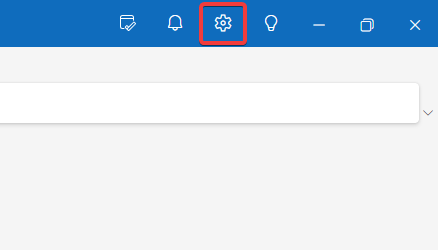
- Click the gear icon in the top right
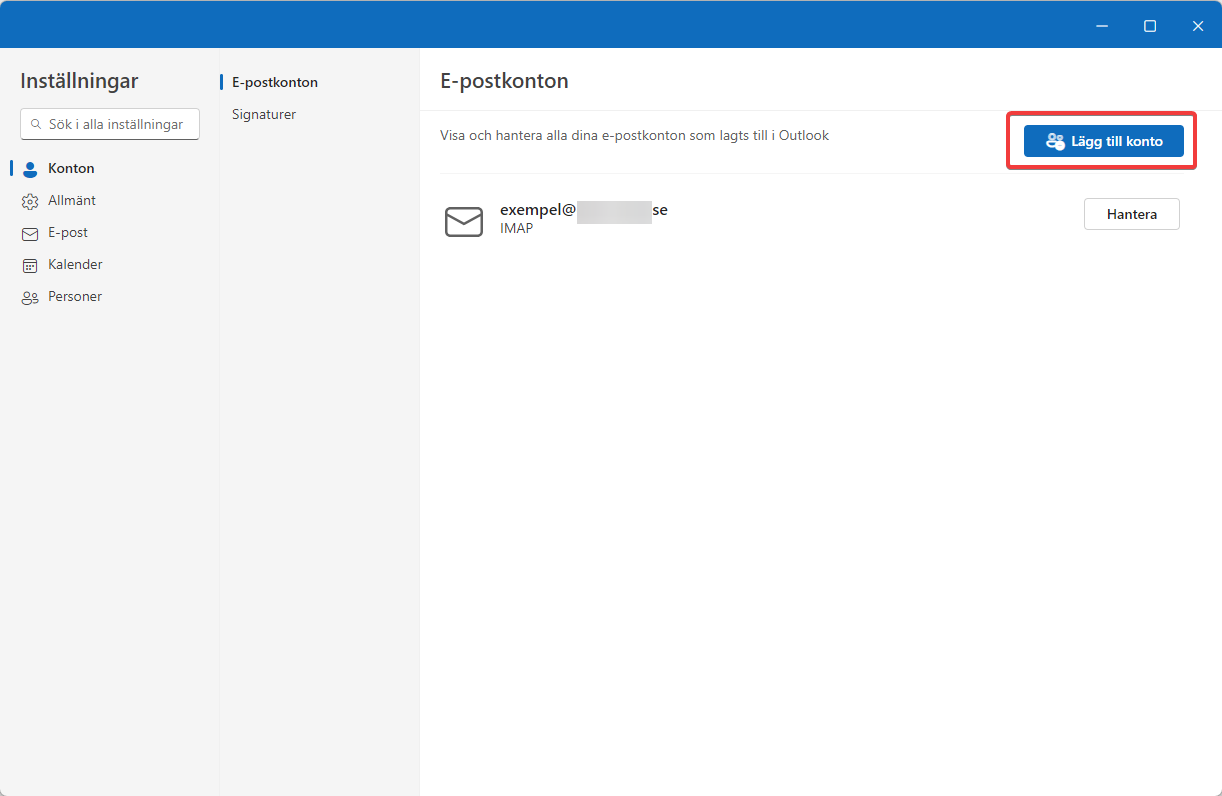
- Click “Add account” in the top right
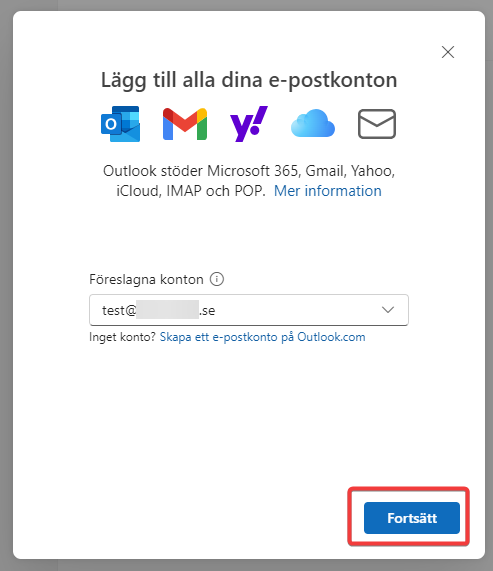
- Enter your email address and click “Continue”
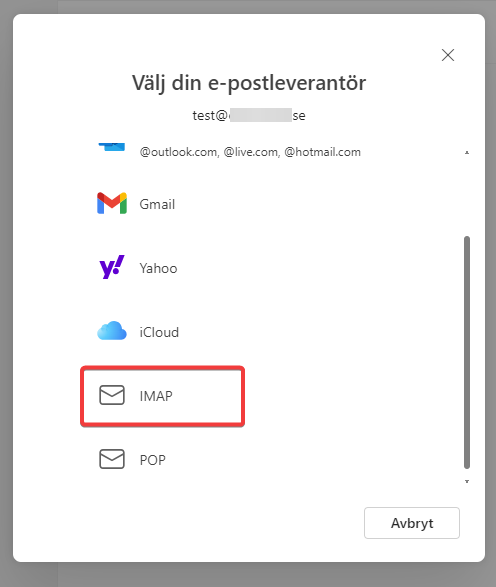
- Scroll down and select “IMAP” as your “email provider”
- Enter your email password, then fill in the information below.
Incoming IMAP Server: imap.websupport.se Port: 993
Secure connection type: SSL/TLS (recommended)
SMTP username: Full email address
SMTP password: Can be left blank
Outgoing SMTP server: smtp.websupport.se Port: 465
Secure connection type: SSL/TLS (recommended)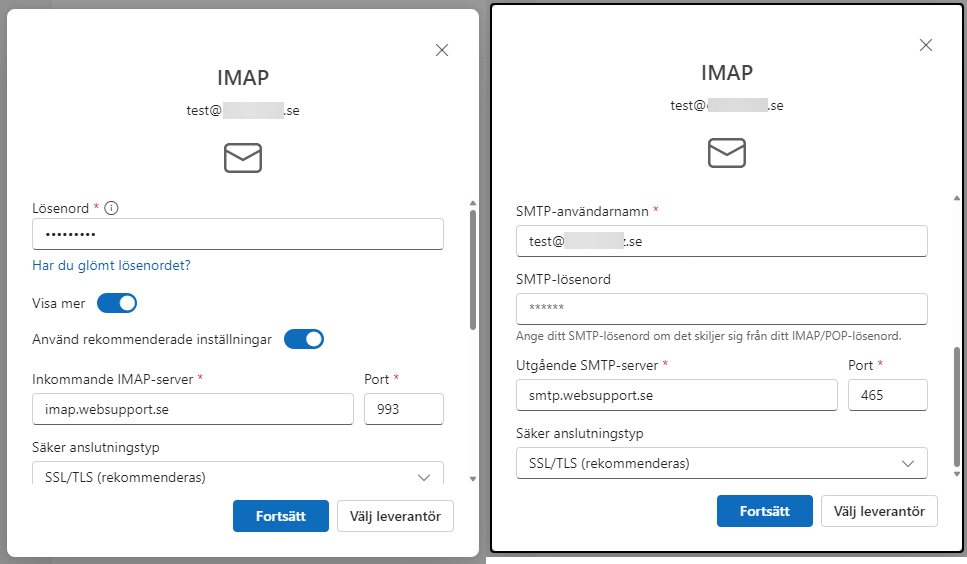
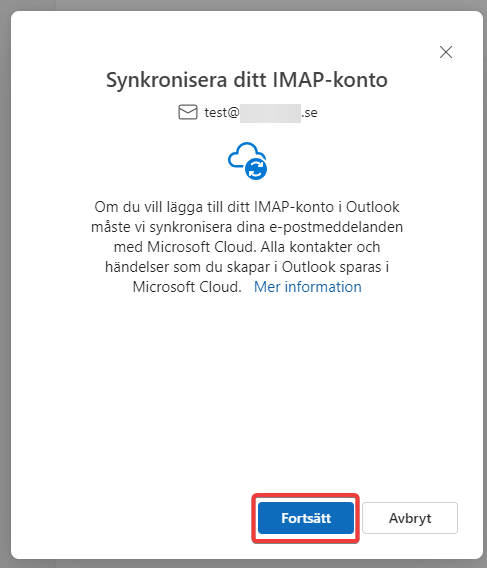
Then click “Continue” - Click “Continue” again
Next, you may need to accept or decline Microsoft’s collection of data from your Outlook use. You choose what works for you, but declining is simplest.
After that, you can use new Outlook!

